Burke Black FAQ
Answers to your burning questions.
Burke Black
- Who is Burke Black?
- Burke is an avid gamer and nerd who loves comic books, sci-fi and fantasy movies, everything gaming, and making people laugh.
- What is Burke's business contact email?
- [email protected]
- When is Burke's birthday?
- July 7th, 1979. Mark your calendars!
- Who does Burke live with?
- Burke currently lives with his father, better known as Dadmiral (Radlit1), and his mother.
- What does Burke do for work?
- Burke is a full-time streamer (and pirate).
- Is Burke single, taken or married?
- Burke is married to the bounding main. A pirate's first love is the sea.
- Is Burke standing while gaming?
-
Yes, Burke does stand while gaming. He stands for 4 hours, sits for 2 hours, and then stands for another 4 hours. He uses a fatigue pad to avoid any leg and back pains.
To get your own UPLIFT V2 Standing Desk (72x30 inch), click here.
- Where did Burke get that hat?
-
Burke's hat comes courtesy of Longnose Leather.
To get your own infamous pirate hat, click here.
- Where did Burke get that mug?
- Burke's face is genetics. But to get a stainless handcrafted mug like the one he drinks out of click here.
The Crew
- Who are the Pirates
-
The Pirates are YOU, the crew of our mighty ship, The Dirty Skull.
Many years ago, Grand Theft Auto V released, and with it came the introduction of crews. It was at this time Burke, his friends, and his followers, decided to create a crew, calling it "The Black Crew", in honor of their captain.
Together, they decided that anarchy, chaos, and freedom to do what they wanted, were the core fundamentals of their crew. Some of the first crew rank titles included; Jokers, Wolverines, and other various villain names.
But then, somebody saw the similarities in the crews' core fundamentals and the fundamentals of sea pirates and suggested that the crew don their eye-patches, fill their tankards, pick up their swords, and become "The Pirates".
The community rejoiced. Jokers became Corsairs, Wolverines became Buccaneers, and "The Black Crew" became "The Pirates".
The rest is history.
- What is The Dirty Skull
-
The Dirty Skull is the name of our mighty ship, on the seas of Twitch.
To join The Dirty Skull Discord, click here.
- Who is The Late Shift
-
Otherwise known as "TLS", The Late Shift is a team of streamers, including BurkeBlack.
Team Members:- BurkeBlack
- CletusBueford
- CrReaM
- GassyMexican
The Late Shift is also the collective name of the team members' communities.
To check out The Late Shift Stream Team, click here.
To join The Late Shift Community Discord, click here.
- Who are the administrators?
-
Our current adminstrator team:
jstubbles is our head moderator. He takes care of our moderators, and helps usher in the new generation like a proud papa.
BleuBelladonna is our community manager. Her duties vary, but generally aim towards keeping the channel (and the Captain) organized and looking professional.
swiftyspiffy is our resident coder, and the father of the Kraken Bot. He makes sure our resident chat bot, the website, the panel and the extension are in top form.
- Who are the Moderators
-
Our current moderation team
- A_p_p_l_e_s
- Acebravo69
- Aeovanti
- BadFoxy
- BleuBelladonna
- DianaDD
- Grayfox3d
- Jayball76
- Jimjam_77
- Jstubbles
- MolleyyOlleyy
- Mrfarside44
- Nik9111
- Nikolai_Von_Imhof
- NinjaDrop0ut
- NoirMagic
- Kagapeme
- PCKaiju
- Proboy34
- Puzuzuu
- Reapz1901
- Sugarist
- swiftyspiffy
- UrDeception
- WillyWonka2197
- Xorshasia
- What is the crew's Steam group?
- The Black Crew Twitch TV Steam group
- What is the crew's "Elder Scrolls Online" guild?
-
The Late Knights Templar
Server: North America
Alliance: Ebonheart Pact - What is the crew's "Rockstar Social Club" crew?
- [BLAK] The Black Crew - TTV
- What is the crew's "Star Citizen" organization?
- The Black Crew
- What is the crew's "Warframe" clan?
- The Late Shift
- What is the crews "World of Warships" clan?
-
[SKUL] Pirates of the Dirty Skull
Server: North America
The Stream
- What is Burke's stream schedule?
-
Burke streams Monday through to Saturday, starting at 10PM EST and ending at 8AM EST. Sunday is Burke’s shore leave.
All times and dates are subject to change.
To check what time Burke starts in your time zone, click here.
- What music does Burke play on stream?
-
- "Burke Black Theme" by Per Kiilstoft
- "Conquest Of The Sea" by Peter Crowle
- Royalty Free Audio from Pretzel Rocks (DMCA Policy)
- Royalty Free Audio from Envato Elements (License)
- "Adventure" by Allen Grey (License)
- "Adventure Trailer" by MS-Records (License)
- "The Drumming" by FASSounds (License)
- "Pirate" by WildKittyTunes (License)
- "Pirate" by Leto (License)
- "Pirates" by Studio Kolomna (License)
- "Pirates" by Luca Francini (License)
- "The Way of Legends" by The Sixth Gate Music (License)
- "Epic War Drums" by Turkay Nisanci (License)
- When did Burke start streaming?
- June 29th, 20113
- When did Burke get his sub button?
- July 7th, 2014
- What type of games does Burke usually stream?
- Burke's a variety streamer, so he will play just about any game out there.
- Who made Burke's art?
-
- Ship Broadside Overlay (Film)
- Burke's Booty Extension Background (Art)
- Emotes
- Bits Cannon
- Bits Treasure Chest
- Captains Cabin Overlay
- Starting Soon Overlay
- Cheer Chat Badges
- Emotes
- Follower Alert (Art)
- Pop-up Emote Overlay (Art)
- Stream Offline Image
- Subscriber Badges
- Twitch Header
- Twitter Header
- Youtube Header
- 'Live' Social Media Banner
- Burke's Booty Extension Background (Animation)
- Cannon Overlay
- Cheermotes
- Donation Alerts
- Emotes
- EpicGames Showcase Overlay
- Face Emotes
- Flag Overlay
- Pop-Up Emote Overlay (Animation)
- Prime Gaming Panel Overlay
- Raid Alert
- Ship Broadside Overlay (Editing)
- Sponsored Stream Overlay
- Sponsor Panel Overlays (EpicGames)
- Stream Introduction Video
- Subscriber Alerts
- Twitch Info Panels
- Webcam Overlay
- Who made Burke's website?
-
The website was put together by Bennyfits, with additional items added by swiftyspiffy and BleuBelladonna.
- Who made Burke's custom bot, The_Kraken_Bot?
-
swiftyspiffy is the mastermind behind the channel bot.
Burke's Booty Extension
- What are Extensions?
-
Extensions are programmable, interactive overlays and panels, which help broadcasters interact with viewers. With Extensions, the Twitch community can interact in new ways such as heat maps, real-time data-driven overlays, mini-games, and leaderboards. 'Getting Started with Extensions', Twitch Developers, 2019.
- What are the different types of extensions?
-
There are several types of extensions:
- A panel extension appears in the panel area below the video player. Panel extensions stay active even when the channel is not live.
- A video-overlay extension renders on top of the video player as a transparent overlay. Overlay extensions are viewable only when the channel is live.
- A video-component extension renders on top of both the video player and any video-overlay extensions. Component extensions take up only part of the screen and can be hidden by viewers. Component Extensions are viewable only when the channel is live.
- How do I access Burke's Booty Extension?
-
The extension will be displayed in the panel area below the video player. By default, to protect Twitch user’s privacy, Extensions do not have access to viewers’ Twitch usernames. Access to this information must be granted to the Extension, if you wish to do so.
To grant access:
Desktop
- Locate the Burke’s Booty Extension, below the video player.
- Click the “Grant Permissions” icon, located in the bottom right corner of the extension.
- Click the “Grant” button.
Mobile
- Click on the “BB” logo, located in the top right corner of the chat.
- Click the “Authenticate with Twitch Account” button.
- Click the “Confirm” button.
You may revoke an Extension’s access at anytime via the connections page in your Twitch Settings.
To learn more about the Extensions program’s data practices, see Twitch’s privacy policy.
- How do I provide feedback on the extension? (Mobile Only)
-
To provide feedback
- Click the three line icon.
- Click "Feedback".
- Select your operating system (e.g. iOS, Android or Other).
- Enter your feedback.
- Click “Send Feedback”.
Please note: This is unavailable from the desktop extension.
- How do I view my followed date? (Mobile Only)
-
To view your follow date:
- On the Burke’s Booty Extension, click the three line icon.
- Click “User Stats”. This is the default page of the extension.
Please note: This is unavailable from the desktop extension.
- How do I view the stream's status?
-
To view the streams status:
- Locate the Burke’s Booty Extension.
- Click the clock icon, “Burke Uptime”.
Please note: This is unavailable from the mobile extension.
- How do I submit a giveaway?
-
To submit a giveaway:
- On the Burke’s Booty Extension, click the present icon, “Giveaway Submission Form”.
- Fill out the form.
- Giveaway Name: Name of item being given away, include all necessary details (e.g. Console, DLC or Full Game, Region etc.)
- Giveaway Contributor: Your name. This is filled in by default.
- Giveaway Type: Type of giveaway. (e.g. Steam Code, Uplay Code, Redemption Link etc.)
- Giveaway Key/Code/Link: Key/Code/Link of the giveaway.
- Doubloon Requirement: Doubloons required to enter the giveaway. By default, this is left at 0. Moderators may alter this option if necessary.
- Non-Subscriber Only: Restrict giveaway to non-subscribers only. Moderators may alter this option if necessary.
- Click “Submit”.
Please note: Submitting a giveaway adds the giveaway details to a database, and does not run the giveaway at the time of submission. A moderator must manually run the giveaway after ensuring the details are correct. You may ask a moderator to run a giveaway you have previously submitted.
Please note: This is unavailable from the mobile extension.
- How do I enter a giveaway?
-
When a giveaway is live, the extension will display the giveaway details and will be inaccessible until the giveaway has ended.
To enter a giveaway:
- Locate the Burke’s Booty Extension.
- Click the “Enter Giveaway” button.
- How do I leave a giveaway?
-
When a giveaway is live, the extension will display the giveaway details and will be inaccessible until the giveaway has ended.
To leave a giveaway:
- Locate the Burke’s Booty Extension.
- Click the “Leave Giveaway” button.
- How do I claim a giveaway?
-
When a giveaway has ended, the extension will display the giveaway winner and will be inaccessible until the giveaway has been claimed.
To claim a giveaway:
- Locate the Burke’s Booty Extension.
- Click the “Claim” button.
Please note: Only the winner will be able to see the claim button.
- How do I redeem a giveaway?
-
To redeem a giveaway:
- On the Burke’s Booty Extension, click the trophy icon, “Giveaway Wins”.
- Mobile: Click the three line icon, then click “Raffles”, and then click “Raffle Wins”.
- Find the most recent giveaway win.
- Copy the key/code/link and redeem at the appropriate place.
Please note: Any redemption links must be copy and pasted elsewhere and cannot be clicked from within the extension.
- How do I view my doubloon count?
-
Your doubloons count will be displayed at the bottom left of the extension. You can refresh this count with the “Refresh” icon to the right.
Mobile:
To view your doubloons count:
- On the Burke’s Booty Extension, click the three line icon.
- Click “User Stats”. This is the default page of the extension.
- How do I submit a soundbyte?
-
To send a soundbyte:
- On the Burke’s Booty Extension, click the music note icon. This is the default page of the extension.
- Mobile: Click the three line icon and then click “Soundbytes”.
- Select or Search for a soundbyte.
- Click “Listen” to listen to the soundbyte. This option is unavailable on mobile.
- Click “Send”.
A message from the Burke_Listener bot will appear in chat at the time of sending a soundbyte.
You can change this setting in the Extensions settings:
- On the Burke’s Booty Extension, click the gear icon, “Extension Settings”.
- Mobile: Click the three line icon and then click “Settings”.
- Click “Yes” – displays a message in chat detailing the soundbyte sent and sender.
- Click “No” – does not display a message in chat.
Please note: Sending a soundbyte requires a single soundbyte credit per soundbyte.
- How do I view my soundbytes credits count?
-
Your soundbyte credits count will be displayed at the bottom right of the extension. You can refresh this count with the “Refresh” icon to the left.
Mobile:
To view your soundbyte credits count:
- On the Burke’s Booty Extension, click the three line icon.
- Click “User Stats”. This is the default page of the extension.
-
Below you can find the current earn rates for Soundbyte Credits through various actions. These rates are subject to change.
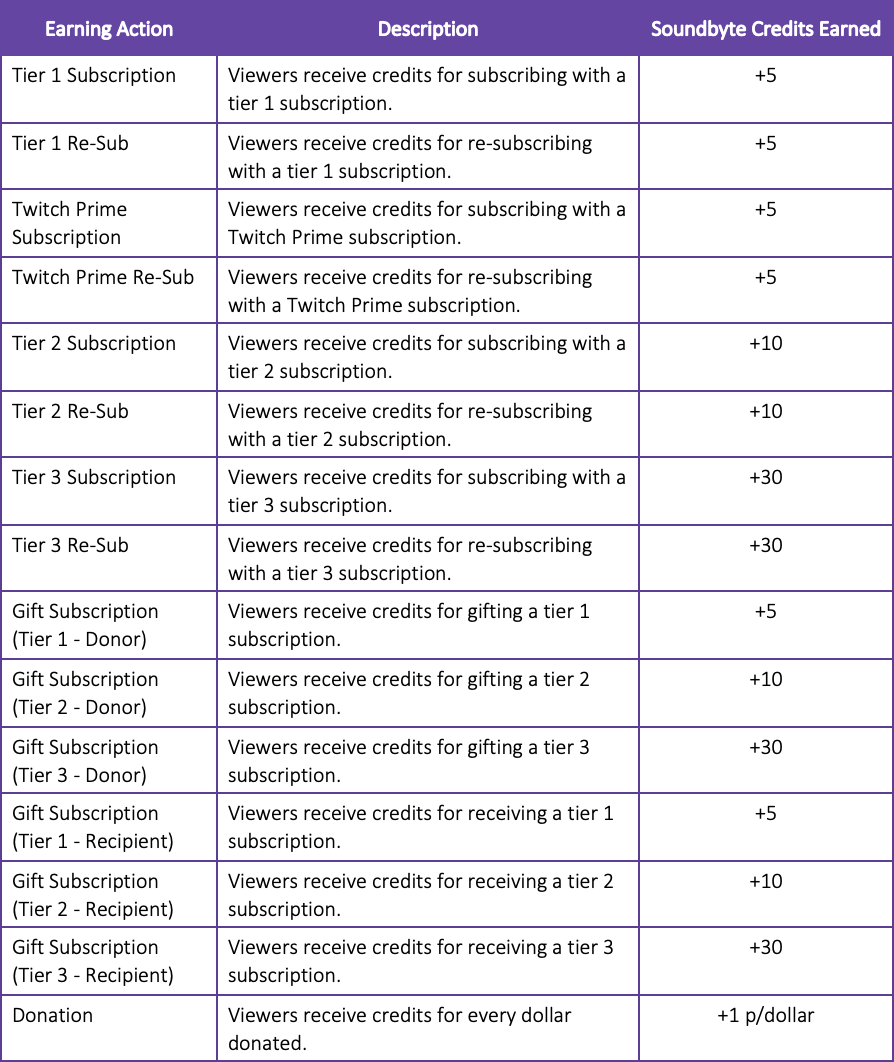
You can also purchase additional soundbyte credits with bits, from the extension.
To purchase additional soundbyte credits:
- On the Burke’s Booty Extension click the plus icon, “Get More Soundbytes”, located in the bottom right of the extension.
- Click "Get Credits".
Please note: If you do not have the required amount of bits to purchase the soundbyte credits, you will be prompted to purchase additional bits.
Please note: This is unavailable from the mobile extension.
Subscription
- What are Burke's loyalty badges?
-
Loyalty badges here...
Courtesy ofTwosenseless
- What are Burke's emotes?
-
Emotes here...
Courtesy ofTwosenseless
- Twitch "Pirates" Subscription – $4.99 USD Monthly (Tier 1)
-
Subscription Benefits:
- 49 Channel Emotes
- Subscriber Badge
- Ad-free Stream
- 100 Doubloons
- 5 Soundbyte Credits
- Personal Bot Command
- Post links in chat
- Chat during sub-only mode
- Access to game servers inc. Conan Exiles, Ark: Survival Evolved etc.
Resub Benefits:
- 50 Doubloons
- 5 Soundbyte Credits
- Plus, all other Tier 1 subscription benefits.
- Twitch “Swashbucklers” Subscription – $9.99 USD Monthly (Tier 2)
-
Subscription Benefits:
- 49 Channel Emotes + 1 Extra Channel Emote
- Subscriber Badge
- Ad-free Stream
- 200 Doubloons
- 10 Soundbyte Credits
- Personal Bot Command
- Post links in chat
- Chat during sub-only mode
- Access to game servers inc. Conan Exiles, Ark: Survival Evolved etc.
Resub Benefits:
- 200 Doubloons
- 10 Soundbyte Credits
- Plus, all other Tier 2 subscription benefits.
- Twitch “Corsairs” Subscription – $24.99 USD Monthly (Tier 3)
-
Subscription Benefits:
- 49 Channel Emotes + 2 Extra Channel Emotes
- Subscriber Badge
- Ad-free Stream
- 600 Doubloons
- 30 Soundbyte Credits
- Personal Bot Command
- Post links in chat
- Chat during sub-only mode
- Access to game servers inc. Conan Exiles, Ark: Survival Evolved etc.
Resub Benefits:
- 300 Doubloons
- 30 Soundbyte Credits
- Plus, all other Tier 3 subscription benefits.
- Twitch "Prime" Subscription – Twitch Prime
-
Twitch Prime is a premium experience on Twitch that is included with Amazon Prime and Prime Video memberships.
Subscription Benefits:
- Chat Badge

- 49 Channel Emotes + Exclusive Twitch Emotes
- Subscriber Badge
- Ad-free viewing on all of Twitch
- 100 Doubloons
- 5 Soundbyte Credits
- Free Games + Exclusive in-game loot
- Personal Bot Command
- Post links in chat
- Chat during sub-only mode
- Expanded chat color options
- Access to game servers inc. Conan Exiles, Ark: Survival Evolved etc.
Resub Benefits:
- 50 Doubloons
- 5 Soundbyte Credits
- Plus, all other Tier 1 subscription benefits.
To learn more about Amazon Prime, click here.
To learn more about Prime Video, click here.
To learn more about Twitch Prime, click here.
- Chat Badge
- Twitch "Gift" Subscription – Gift Subscriptions
-
You may choose to gift a subscription to a specific viewer or give up to 100 gifts to followers and viewers of the channel.
Tier 1 Benefits:
- 50 Doubloons
- 5 Soundbyte Credits
- Plus, all other Tier 1 subscription benefits.
Tier 2 Benefits:
- 200 Doubloons
- 10 Soundbyte Credits
- Plus, all other Tier 2 subscription benefits.
Tier 3 Benefits:
- 300 Doubloons
- 30 Soundbyte Credits
- Plus, all other Tier 3 subscription benefits.
It contains the following perks, for the gifter:
Tier 1 Benefits:
- Chat Badge

- 50 Doubloons
- 5 Soundbyte Credits
Tier 2 Benefits:
- Chat Badge
- 200 Doubloons
- 10 Soundbyte Credits
Tier 3 Benefits:
- Chat Badge
- 300 Doubloons
- 30 Soundbyte Credits
To learn more about Gift Subscriptions, click here.
Giveaways
- How do I submit a giveaway? (Desktop Only)
-
To submit a giveaway:
- On the Burke’s Booty Extension, click the present icon, “Giveaway Submission Form”.
- Fill out the form.
- Giveaway Name: Name of item being given away, include all necessary details (e.g. Console, DLC or Full Game, Region etc.)
- Giveaway Contributor: Your name. This is filled in by default.
- Giveaway Type: Type of giveaway. (e.g. Steam Code, Uplay Code, Redemption Link etc.)
- Giveaway Key/Code/Link: Key/Code/Link of the giveaway.
- Doubloon Requirement: Doubloons required to enter the giveaway. By default, this is left at 0. Moderators may alter this option if necessary.
- Non-Subscriber Only: Restrict giveaway to non-subscribers only. Moderators may alter this option if necessary.
- Click “Submit”.
Please note: Submitting a giveaway adds the giveaway details to a database, and does not run the giveaway at the time of submission. A moderator must manually run the giveaway after ensuring the details are correct. You may ask a moderator to run a giveaway you have previously submitted.
Please note: This is unavailable from the mobile extension.
- How do I enter a giveaway?
-
When a giveaway is live, the extension will display the giveaway details and will be inaccessible until the giveaway has ended.
To enter a giveaway:
- Locate the Burke’s Booty Extension.
- Click the “Enter Giveaway” button.
- How do I leave a giveaway?
-
When a giveaway is live, the extension will display the giveaway details and will be inaccessible until the giveaway has ended.
To leave a giveaway:
- Locate the Burke’s Booty Extension.
- Click the “Leave Giveaway” button.
- How do I claim a giveaway?
-
When a giveaway has ended, the extension will display the giveaway winner and will be inaccessible until the giveaway has been claimed.
To claim a giveaway:
- Locate the Burke’s Booty Extension.
- Click the “Claim” button.
Please note: Only the winner will be able to see the claim button.
- How do I redeem a giveaway?
-
To redeem a giveaway:
- On the Burke’s Booty Extension, click the trophy icon, “Giveaway Wins”.
- Mobile: Click the three line icon, then click “Raffles”, and then click “Raffle Wins”.
- Find the most recent giveaway win.
- Copy the key/code/link and redeem at the appropriate place.
Please note: Any redemption links must be copy and pasted elsewhere and cannot be clicked from within the extension.
Doubloons
- What are doubloons?
-
Doubloons are our custom currency system, used to reward viewers for watching the stream and subscribing.
- What are Doubloons for?
-
Doubloon amounts are used as entry requirements to gain access to community game servers, and large giveaways.
- How do I view my doubloons count?
-
Your doubloons count will be displayed at the bottom left of the extension. You can refresh this count with the “Refresh” icon to the right.
Mobile:
To view your doubloons count:
- On the Burke’s Booty Extension, click the three line icon.
- Click “User Stats”. This is the default page of the extension.
- How do I earn/get more doubloons?
-
Below you can find the current earn rates for Doubloons through various actions. These rates are subject to change.


Soundbytes
- What are Soundbytes?
-
A soundbyte is a short clip of speech or music extracted from a longer piece of audio, often used to encourage funny moments, dancing and jump scares.
- How do I submit my own soundbyte?
-
You can upload your own soundbyte by heading to the Soundbyte Website, and clicking "Upload to Public Catalog".
Any soundbytes submitted must adhere to several rules:
- Must be less than 15 seconds.
- Must be MP3 format.
- Must not contain political, religous, copyrighted, or obscene content.
- Must be in the same decibel range as existing soundbytes.
Ensure your soundbyte is of an appropriate volume with this volume guide graphic.
- How do I send a soundbyte?
-
To send a soundbyte:
- On the Burke’s Booty Extension, click the music note icon. This is the default page of the extension.
- Mobile: Click the three line icon and then click “Soundbytes”.
- Select or Search for a soundbyte.
- Click “Listen” to listen to the soundbyte. This option is unavailable on mobile.
- Click “Send”.
A message from the Burke_Listener bot will appear in chat at the time of sending a soundbyte.
You can change this setting in the Extensions settings:
- On the Burke’s Booty Extension, click the gear icon, “Extension Settings”.
- Mobile: Click the three line icon and then click “Settings”.
- Click “Yes” – displays a message in chat detailing the soundbyte sent and sender.
- Click “No” – does not display a message in chat.
Please note: Sending a soundbyte requires a single soundbyte credit per soundbyte.
- What are Soundbyte Credits?
-
Soundbyte Credits are the currency used to send a soundbyte.
- How do I view my soundbyte credits count?
-
Your soundbyte credits count will be displayed at the bottom right of the extension. You can refresh this count with the “Refresh” icon to the left.
Mobile:
To view your soundbyte credits count:
- On the Burke’s Booty Extension, click the three line icon.
- Click “User Stats”. This is the default page of the extension.
- How do I earn/get more soundbyte credits?
-
Below you can find the current earn rates for Soundbyte Credits through various actions. These rates are subject to change.
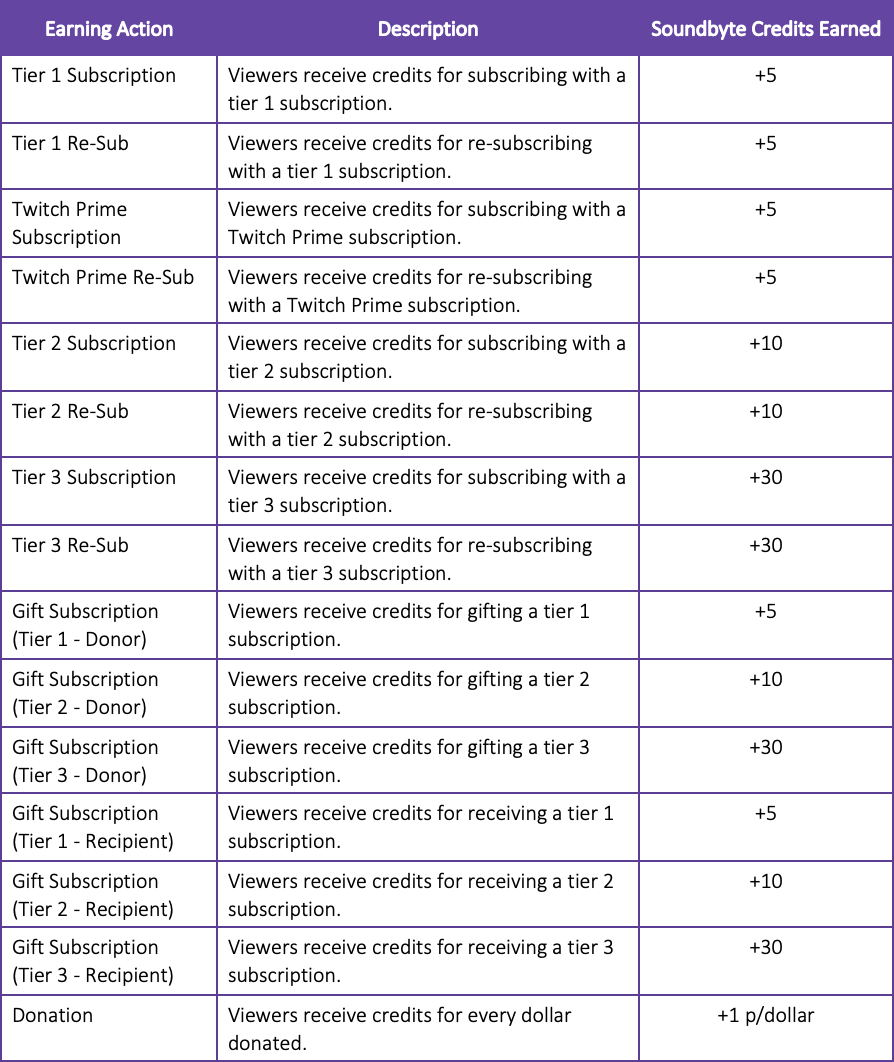
You can also purchase additional soundbyte credits with bits, from the extension.
To purchase additional soundbyte credits:
- On the Burke’s Booty Extension click the plus icon, “Get More Soundbytes”, located in the bottom right of the extension.
- Click "Get Credits".
Please note: If you do not have the required amount of bits to purchase the soundbyte credits, you will be prompted to purchase additional bits.
Please note: This is unavailable from the mobile extension.

Channel Points
- What are Channel Points?
-
Channel Points is a customizable points program that lets streamers reward members of their community with perks, including a taste of benefits typically reserved for subscribers. – 'Channel Points Guide', Twitch.TV.
To learn more about Channel Points, click here.
Gold Coins? -
Gold Coins is the custom name of our Channel Points.
- How do I earn/get more gold coins?
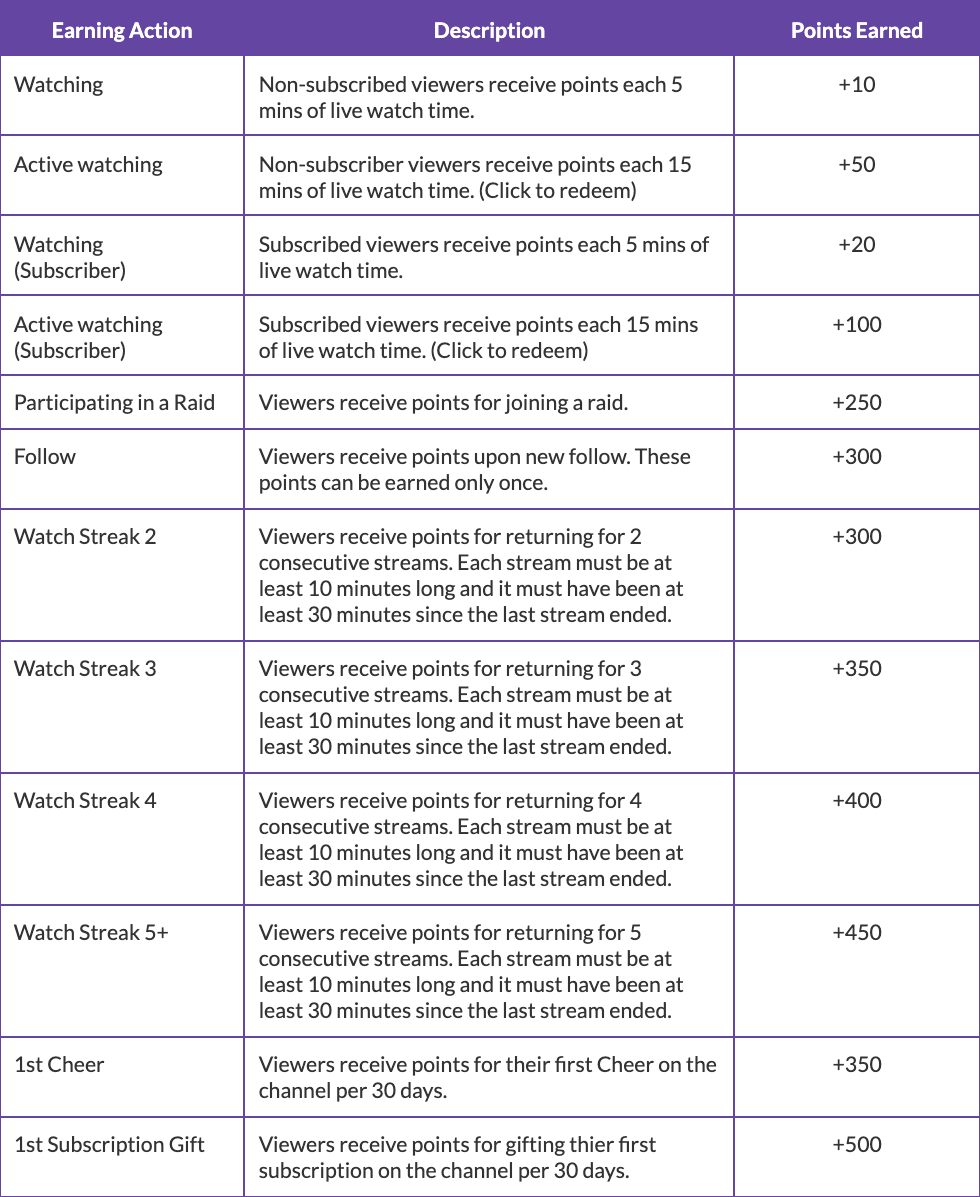
-
Below you can find the current earn rates for Channel Points through various actions. These rates are subject to change.
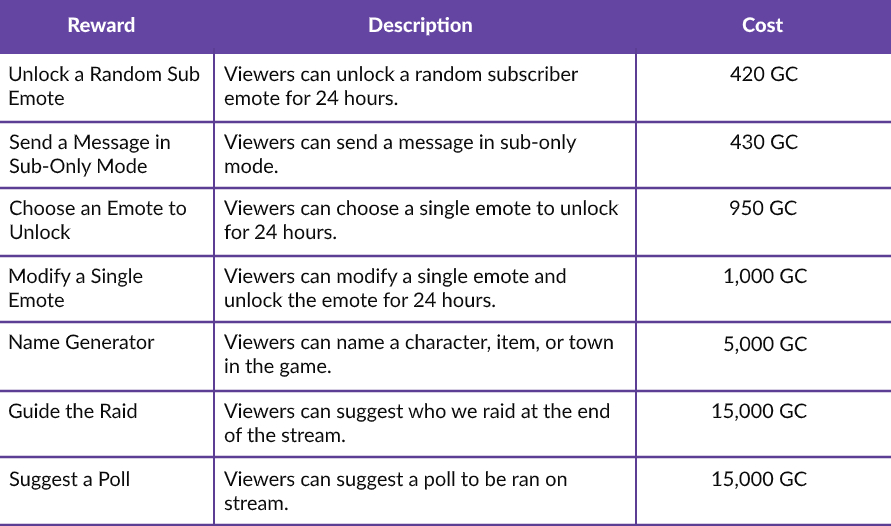
- What can I spend my gold coins on?
-
Below you can find the currently available rewards and costs for Channel Points. These rewards and costs are subject to change.